https://sbmesh.com/files/PinLauncher.zip
If you spend your day bouncing between the same dozen project folders, config files, and scripts, you already know the tax: opening a file manager, navigating to the same directory for the hundredth time, or digging through shell history to find that one command you ran last Tuesday. PinLauncher is a small desktop app I built to eliminate that tax — a single-window, single-file Python/Qt tool that turns your most-used files, folders, and shell commands into one click.
What it is
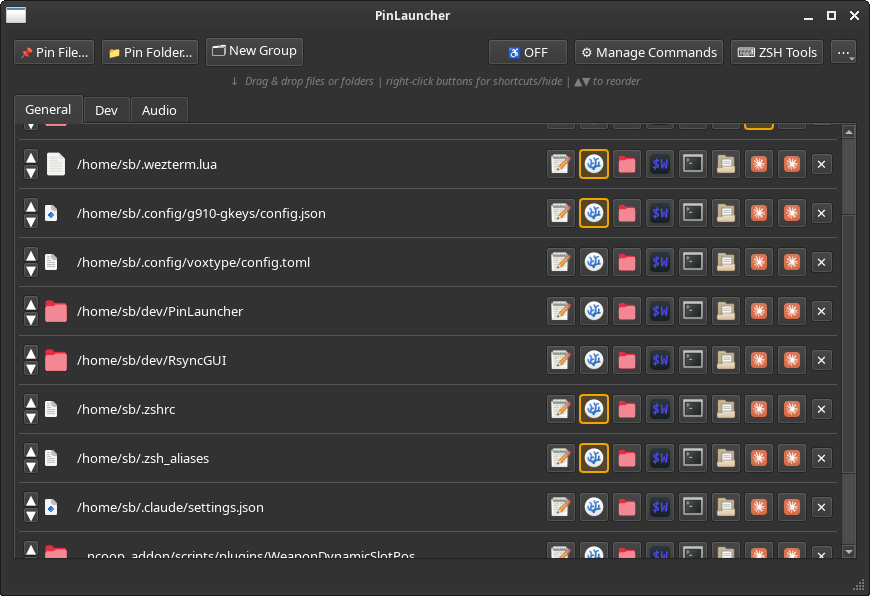
PinLauncher is a pin board for your filesystem. Drag a file or folder onto it (or add it via the toolbar), and it becomes a persistent row with buttons for every action you'd normally take on it — open in a text editor, launch a terminal there, run it, reveal it in a file manager, whatever you configure. Pins are organized into color-coded groups and tabs, so a "Dev" tab might hold your active project directories while a "Configs" tab holds dotfiles you edit often.
It's built with Python and PySide6 (Qt6), ships as a single ~3,200-line script with no build step and no package manager, and stores everything in a plain JSON config file. There's genuinely nothing to install beyond pip install PySide6.
Core features
Pin anything, launch it any way you want. Each pin gets a row of command buttons — Text Editor, VSCodium, File Manager, a terminal in that directory, xdg-open, or anything else you define. Command templates use {path} and {dir} placeholders (wezterm start --cwd {dir} opens a terminal in a file's parent folder), so adding a new tool is a one-line addition, not a code change.
Double-click a pin's label to fire your preferred command instantly; Ctrl+click fires a second preferred command. This turns the two things you do most with a file — say, "edit it" and "run it" — into a single click each, no menu required.
Groups and tabs keep things sane. As your pin list grows, flat lists stop working. Groups are collapsible, color-coded containers you drag pins into; tabs split your whole pin board into separate contexts (Dev, Docs, Scratch, whatever fits your workflow). Drag-and-drop reordering works throughout — reorder within a group, move a pin to a different group, or drop it at the end of a tab.
It survives your mistakes. Config saves are atomic (write-to-temp-then-replace) and keep one backup generation automatically, so a crash mid-write or a bad config edit doesn't cost you your setup. Pins whose target has moved or been deleted grey out instead of silently failing, with a right-click "Locate…" action to repoint them without losing your aliases, shortcuts, and colors.
It gets out of your way. Minimizes to the system tray instead of quitting on close, so it's always one click away. Ctrl+F drops a filter box over everything — search across every tab at once by path, alias, or group name, and hit Enter to launch the single match. Export/import config lets you back up or move your whole setup between machines.
ZSH Tools: the part that surprised me by being useful
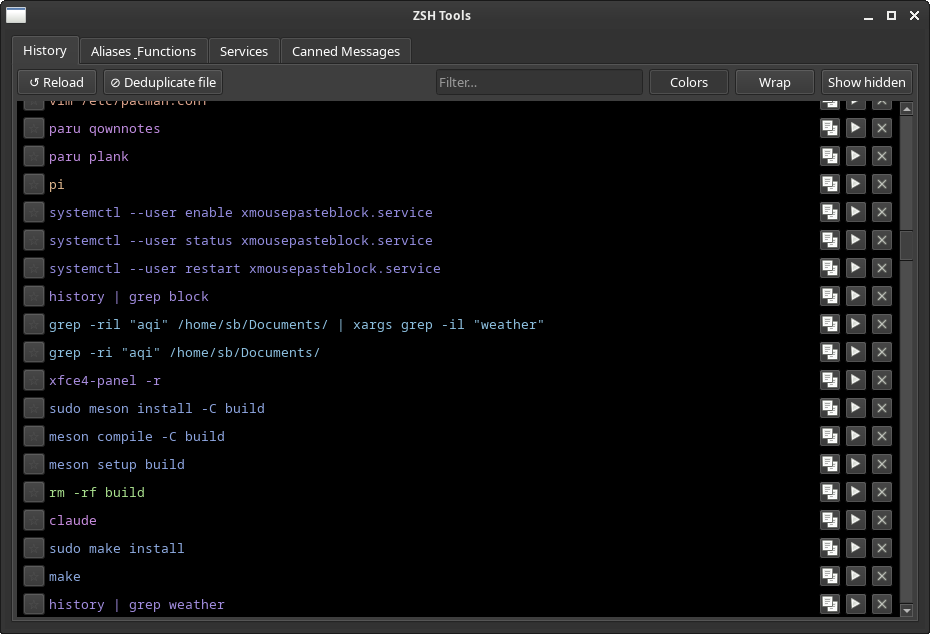
The feature that gets the most daily use isn't the pin board itself — it's the companion ZSH Tools window, opened from the toolbar. It's four tabs built around one idea: everything you've ever typed or configured in your shell is already a personal knowledge base, it's just locked inside files nobody browses.
- History parses
~/.zsh_historyinto a deduplicated, colorized, searchable list. Pin the commands you run constantly, hide the noise, and run or copy any entry without retyping it. A one-click deduplicate-and-rewrite (with automatic backup) cleans up a history file that's accumulated years of repeats. - Aliases & Functions does the same thing for your
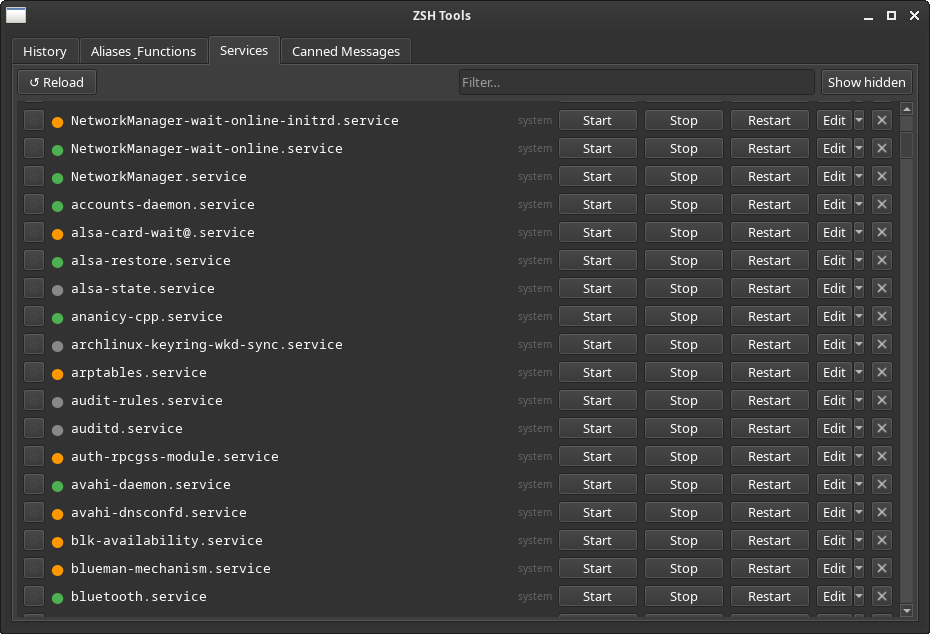
~/.zshrc— every alias and function becomes a searchable, runnable, pinnable row instead of a wall of text yougrepthrough. - Services lists your systemd units (system and user scope) with live status coloring and start/stop/restart buttons, handling the
pkexec/sudoeditdance for system-scope services so you're not hand-typingsystemctlincantations. - Canned Messages is a template library for shell one-liners with
%splaceholders — thinksudo paru %sorgit clone %s— with argument history, bookmarked arguments, and a clipboard-run mode that grabs your clipboard contents as the argument and fires immediately.
Together these four tabs mean the shell history you already have becomes a browsable, curated toolkit instead of something you scroll through with the up arrow and hope to remember.
Who this is for
PinLauncher is aimed squarely at people who live in a terminal-and-file-manager workflow on Linux — developers, sysadmins, anyone managing systemd services or juggling more project directories than they can keep in their head. It assumes a desktop environment with drag-and-drop and a system tray (built against XFCE, should work anywhere Qt6 does), and it assumes you have a handful of terminal/editor tools you already prefer — it doesn't try to replace those, just get you to them faster.
If you've ever thought "I wish I could just click on this instead of typing the same cd and command every time," that's the itch this scratches.
Use cases
- Multi-project development: pin each active repo, with per-project preferred commands (open in editor vs. open a terminal there), grouped by client or by stack.
- Sysadmin dashboards: pin config files alongside the systemd services they control, so editing a config and restarting its service are two clicks apart instead of two terminal sessions.
- Shell history as documentation: instead of maintaining a separate cheatsheet of "commands I always forget," pin them directly out of your real history or build canned templates for the ones with arguments.
- Fast context switching: tabs per work context (client A, client B, personal) mean your pin board scopes itself to whatever you're currently doing, instead of one long undifferentiated list.
Try it
git clone <repo-url>
cd PinLauncher
pip install PySide6
python3 pinlauncher.py
No config to write by hand — the app creates ~/.config/pinlauncher/config.json on first run and migrates it forward automatically as new versions add fields. Everything else is discoverable from the toolbar and right-click menus.