
For years I used the Sunrise Sunset Calculator for Windows — a lightweight desktop tool that sits quietly in your system tray and tells you exactly when the sun rises and sets...
When I switched to Linux full-time, I missed it. Nothing quite filled the same niche — lightweight, always visible, no internet required. So I built SunClock: a single-file Python/GTK app that does the same job natively on Linux.
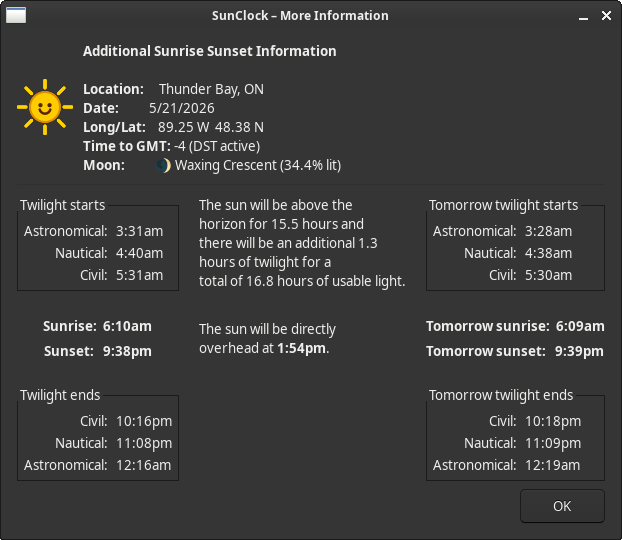
What It Does
SunClock lives in your system tray. During the day it shows a sun icon; after sunset it switches to the current moon phase emoji. Hover over it at any time and you get a tooltip like:
Sunrise 5:02am Sunset 9:14pm | Sunset in 3.2 hrs
Click the icon (or right-click for the menu) and a detailed info panel opens showing:
- Sunrise and sunset times for today and tomorrow
- Three twilight phases — civil (96°), nautical (102°), and astronomical (108°) — for both dawn and dusk
- Solar noon — when the sun is at its highest point
- Total daylight hours and additional twilight hours
- Moon phase with name, emoji, and illumination percentage (e.g. Waxing Gibbous — 73.4% lit)
All calculations happen locally. No network calls, no account, no telemetry.
How It Works
Solar maths
Sun times are calculated using the NOAA solar algorithm — the same approach used by weather services and observatories. The core steps are:
- Convert the calendar date to a Julian Day Number
- Compute the sun's declination (how far north or south of the equator it sits) and the equation of time (the difference between mean solar time and apparent solar time)
- Solve the hour angle for a given zenith angle — 90.833° for sunrise/sunset (accounting for atmospheric refraction and the sun's disc radius), 96° for civil twilight, 102° for nautical, 108° for astronomical
- Convert back to local clock time using the city's UTC offset
Moon calculations
Moon phase uses a dual-path approach:
- Primary: python-pyephem — a Python binding to the ELP2000/VSOP87 planetary theory, accurate to within seconds
- Fallback: A 20-term Meeus ephemeris implemented in pure Python, accurate to within about ±0.6% illumination
The app detects which is available at startup and silently uses whichever it finds.
DST handling
Rather than relying on the system timezone (which can be unreliable for multi-city comparisons), SunClock stores each city's standard UTC offset and applies DST rules internally:
- North American DST — 2nd Sunday in March → 1st Sunday in November (+1 hour)
- European DST — last Sunday in March → last Sunday in October (+1 hour)
- Fixed offset — cities like Phoenix AZ, Singapore, or Dubai that don't observe DST
Per-city DST flags mean you can compare, say, London in summer (BST, UTC+1) against Toronto (EDT, UTC−4) and get accurate times for both simultaneously.
City Coverage
SunClock ships with 53 cities across six regions, with London, UK as the default:
| Region | Cities |
|---|---|
| Europe | London, Paris, Berlin, Rome, Madrid, Amsterdam, Stockholm, Athens, Moscow, Istanbul |
| North America | New York, Chicago, Los Angeles, Miami, Houston, Seattle, Denver, Phoenix, Anchorage, Honolulu, Mexico City |
| Canada | Thunder Bay, Toronto, Ottawa, Montreal, Halifax, St. John's, Winnipeg, Regina, Saskatoon, Calgary, Edmonton, Vancouver, Whitehorse |
| South America | São Paulo, Buenos Aires, Bogotá, Lima |
| Middle East & Africa | Dubai, Riyadh, Cairo, Lagos, Nairobi, Johannesburg |
| Asia & Pacific | Mumbai, New Delhi, Beijing, Shanghai, Tokyo, Seoul, Hong Kong, Singapore, Bangkok, Jakarta, Sydney, Melbourne, Auckland |
You can also add, edit, or remove cities via the right-click menu — just enter a name, latitude/longitude, UTC offset, and DST region.
Installation
Requirements
SunClock is tested on Arch Linux / CachyOS with XFCE but works on any GTK 3 desktop (GNOME, KDE, MATE, etc.).
Install the dependencies:
# Arch / CachyOS / Manjaro
sudo pacman -S python-gobject python-cairo python-pyephem

# Debian / Ubuntu
sudo apt install python3-gi python3-gi-cairo gir1.2-gtk-3.0 python3-ephem
python-pyephem (python3-ephem) is optional but recommended — it gives higher-accuracy moon data. The app falls back gracefully without it.
Download
https://sbmesh.com/files/sun.zip
Install to your system
./install.sh
This copies sunclock to ~/.local/bin/, adds a .desktop entry to ~/.local/share/applications/, and creates an autostart entry so it launches automatically when you log in.
After installing, you can launch it from your application menu or just log out and back in.
Uninstall
rm ~/.local/bin/sunclock
rm ~/.local/share/applications/sunclock.desktop
rm ~/.config/autostart/sunclock.desktop
Configuration is stored at ~/.config/sunclock/config.json — delete this too if you want a clean slate.
Resetting to Defaults
If you want to switch your active city to London (or reload the full default city list), delete the config file and restart:
rm ~/.config/sunclock/config.json
python3 sunclock.py
Technical Notes
- Single file — the entire application is
sunclock.py(~800 lines), with no external assets or build step - 60-second refresh — times update every minute via
GLib.timeout_add_seconds - Cairo-rendered tray icon — the sun glyph is drawn programmatically; no image files required
- Moon emoji rendered with Pango/PangoCairo — uses Noto Color Emoji if installed
- Config —
~/.config/sunclock/config.jsonstores your city list and active selection; hand-editable